KiCad Editor edits KiCad schematics and boards on iPad. Your fingers pan and zoom; the Pencil picks the exact pad under its tip, shows what it would pick before it touches, and drags without a hold. It saves the project’s own KiCad files, so you can carry on at your desk.
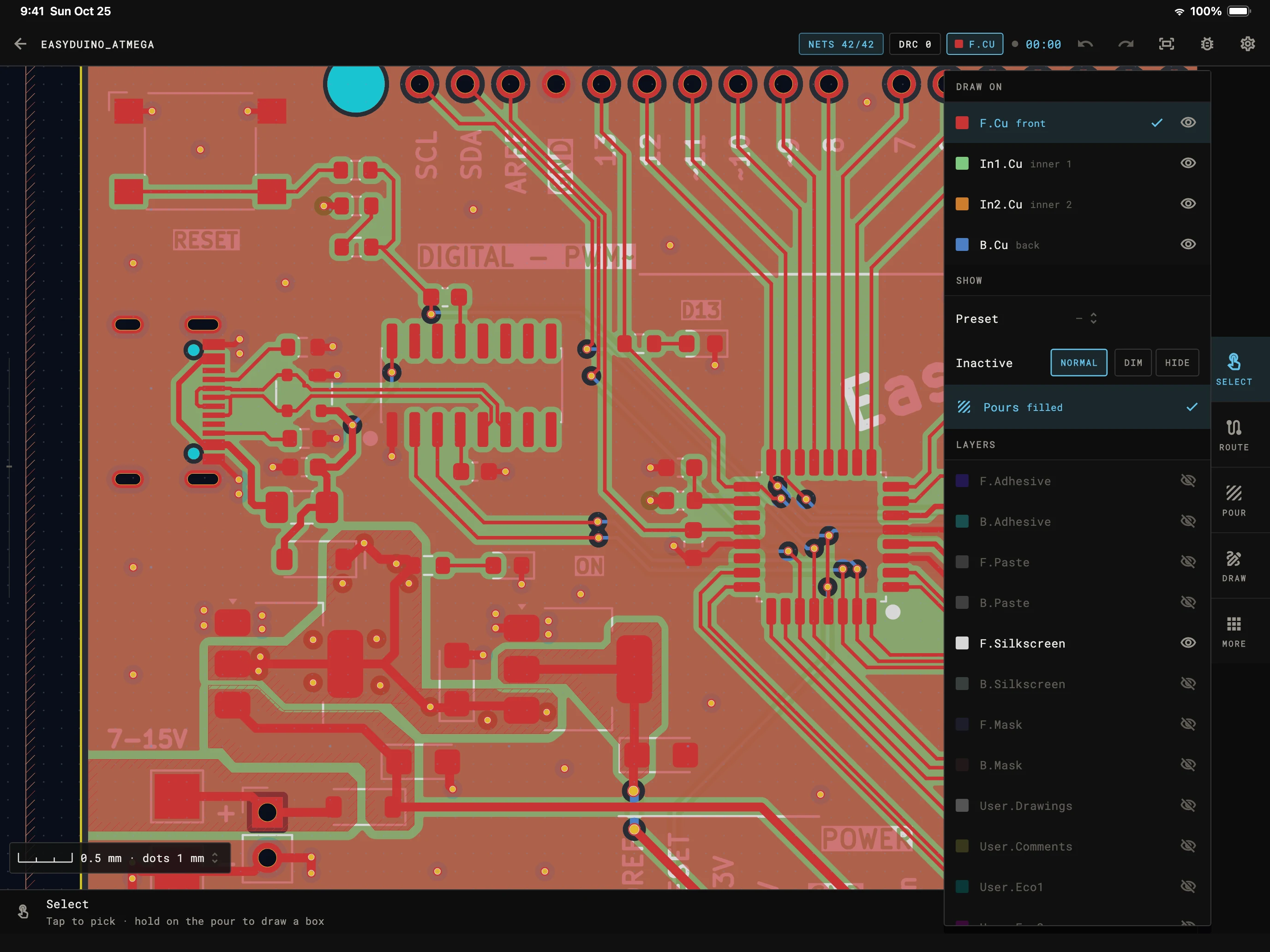
The Pencil
The editors are held to recordings of KiCad driven with a mouse, and the Pencil follows them more closely than a finger can: a hovering tip moves the pointer, a touch clicks, a drag is a mouse drag.
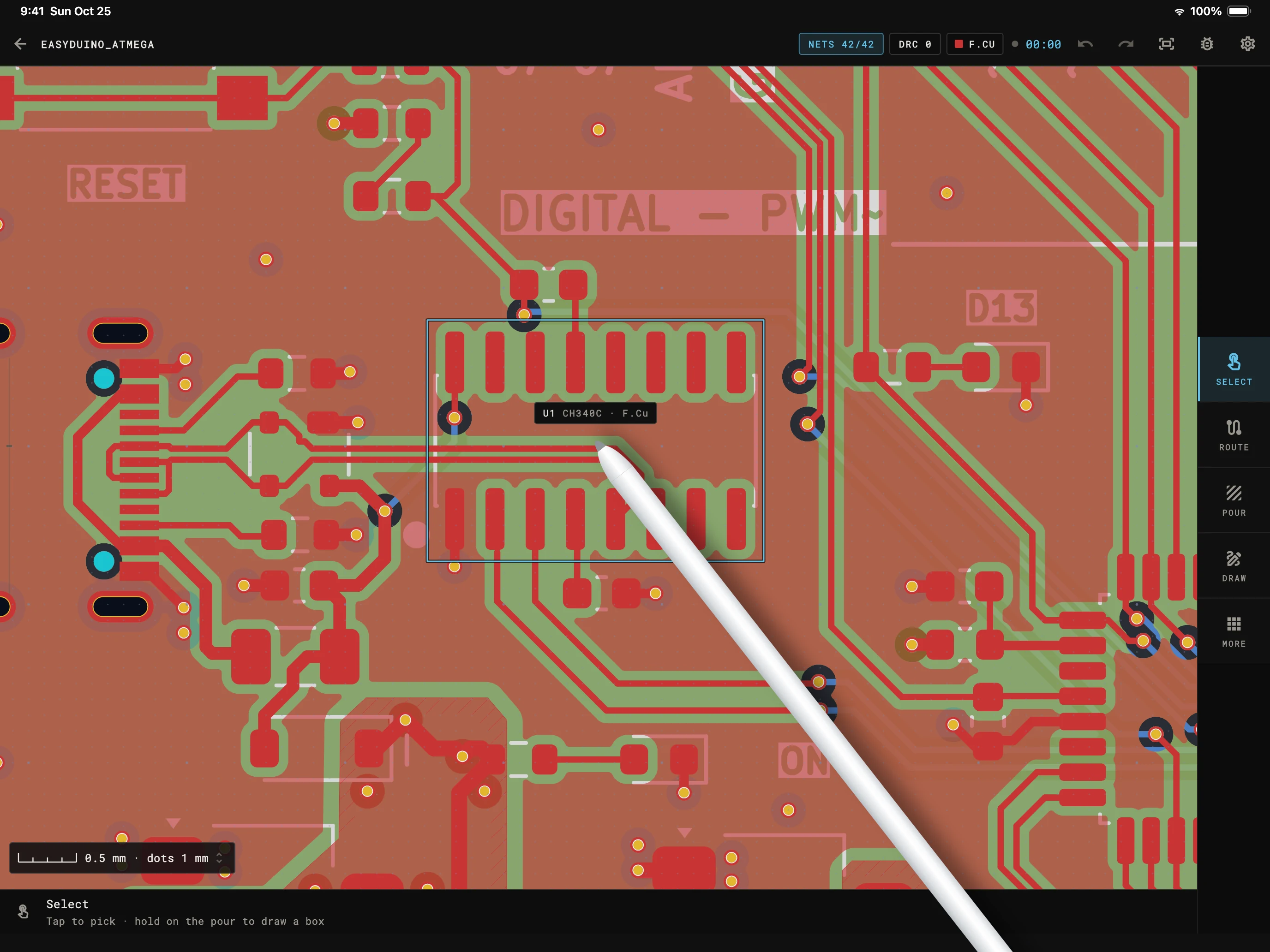
Hovering over U1: outlined, and named at the tip.
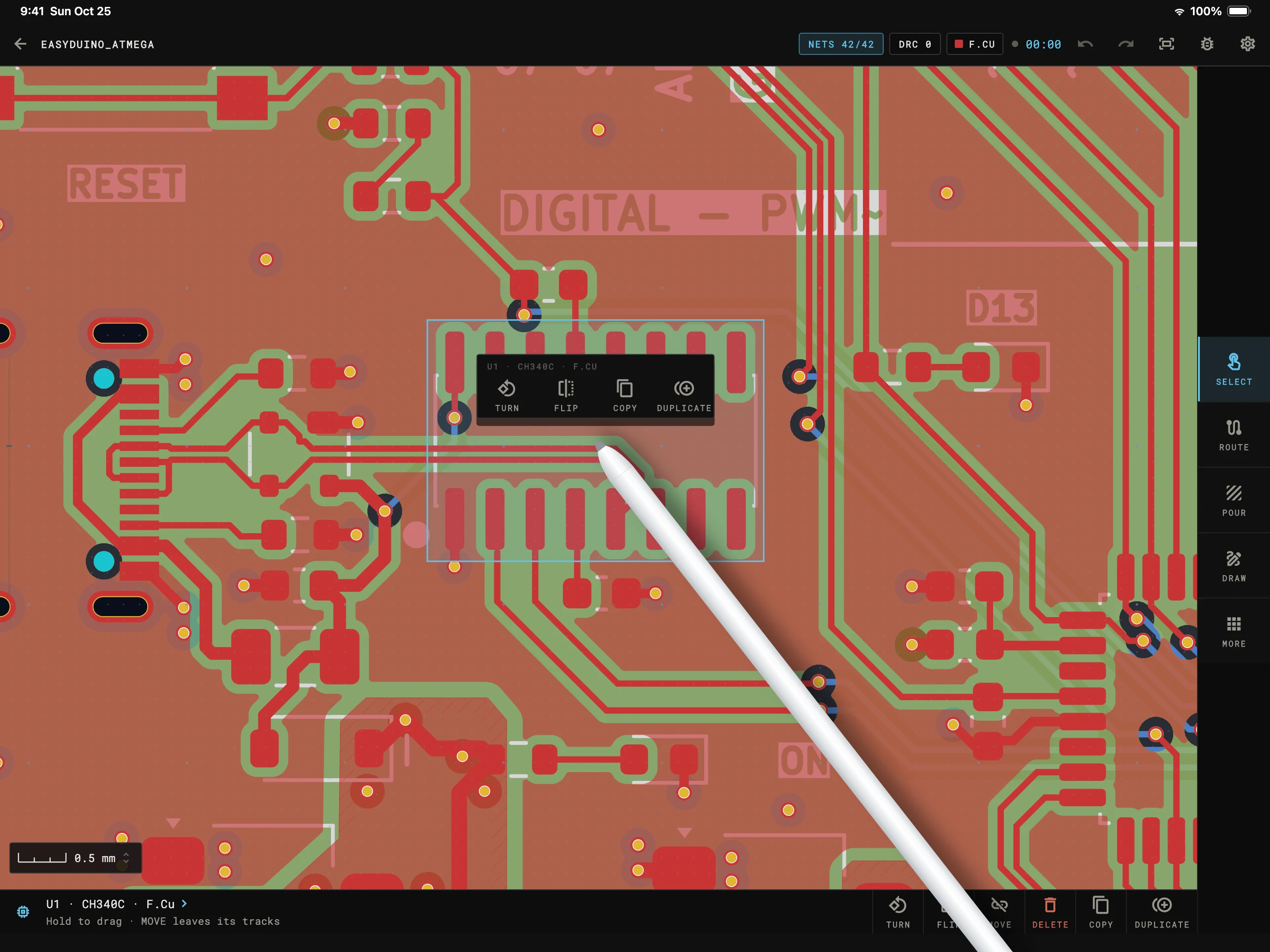
Squeezed: U1 picked, its keys at the tip.
| Gesture | Apple Pencil | Finger |
|---|---|---|
| Tap | Picks the pad, track, pin or text under the tip. | Picks within a fingertip's reach, the larger target a finger needs. |
| Hover | Outlines what a tap would pick and names it in a label at the tip. In a tool, the cursor, the rubber band and the part being placed follow the tip. | Nothing: a finger can't hover. |
| Drag | Moves what it lands on at once, or draws a selection box on bare board. | Pans. A hold first, then the drag moves. |
| Loupe | Never: the tip hides nothing. | A magnified view of what's under the finger while dragging. |
| Squeeze | Apple Pencil Pro: the keys of what's under the tip (turn, flip, copy…), or the tool's own, or every tool. | The same keys are on the bar under the canvas. |
| Double-tap | The iPad's choice by default, or the last tool, or undo. | Two fingers tapping together undo, three redo. |
In the board, schematic and symbol editors.
On a big screen
On iPad the tool keys run down the side of the canvas, and on the schematic a picked part’s properties open in a panel beside it. Turn the iPad and the layout follows.
Everything else is the same app as on a phone: the schematic and board editors, the rule checks, the libraries, the outputs and source control.
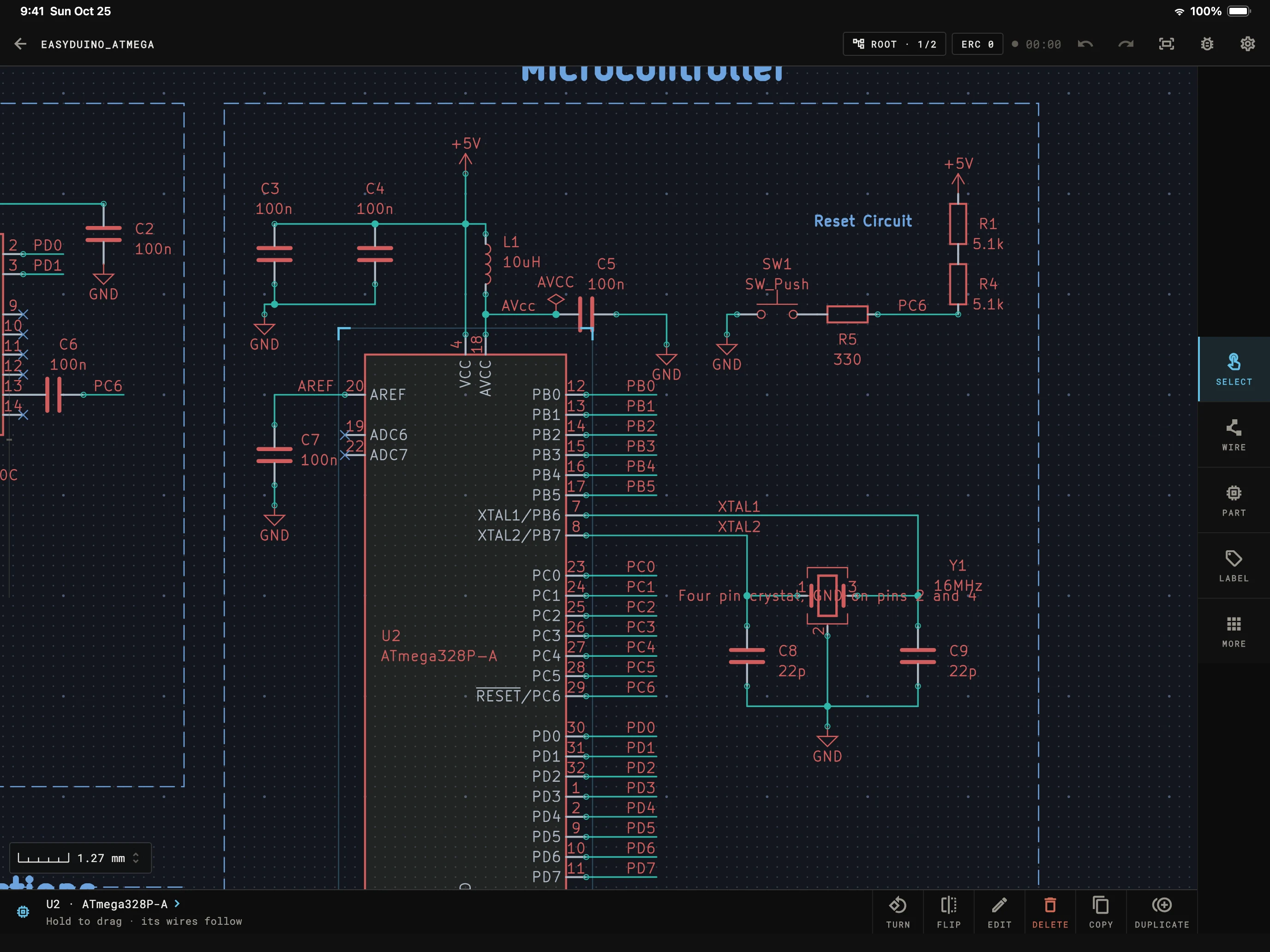
Settings → Apple Pencil
By default the editor does what the iPad’s own Apple Pencil settings say. Each can be set for the editor alone.
“As iPad”, the default, follows Only Draw with Apple Pencil in the iPad's settings. “Navigate” leaves editing to the Pencil: fingers pan, zoom and pick, so a resting hand never moves anything. “Edit” lets fingers do everything beside the Pencil.
“As iPad” does what the iPad's setting says: switch to Select and back, the tool palette, or the last tool. Or set it to the last tool or undo, or turn it off.
“As iPad”, always the palette at the tip, or off. Nothing in the palette deletes anything, so a squeeze by accident costs nothing.
Two fingers tapping undo and three redo, on by default. A palm resting on the glass doesn't count as a tap.
Questions
No. Every editor works with fingers alone, on iPad and on phones. The Pencil adds precision: exact picks, hover, and dragging without a hold.
Any Apple Pencil picks precisely and drags without a hold. Hover needs an iPad and Pencil that support Apple Pencil hover. Double-tap needs Apple Pencil (2nd generation) or Apple Pencil Pro, and squeeze needs Apple Pencil Pro.
Yes. With it on, one finger pans and zooms in every tool and only the Pencil edits. The editor's own Fingers setting can override it either way.
Yes. A mouse or trackpad hovers and picks the way the Pencil does.
It's the same app and the same subscription. On iPad the tool keys run down the side of the canvas, so more of the board stays in view.
Get the app
KiCad Editor is on Google Play now, and the iPad and iPhone app is next. Leave your email and we'll write the day it's out.
 KiCad Editor